How to: Create a Scan Template
Build a reusable scan setup once, then reuse the same keyword, grid density, and location settings for consistent reports.
What a template saves
A Scan Template stores the business, keyword, grid size, point distance, scan center, and default processing method. Use it when you need repeatable audits instead of one-off checks.
Open New Scan Template
Open New Scan Template from the Scans area. The form includes the business selector, so you can choose the location and configure the template in one place. You can also start from a business profile when you already know which location the template belongs to.
Enter the keyword setup
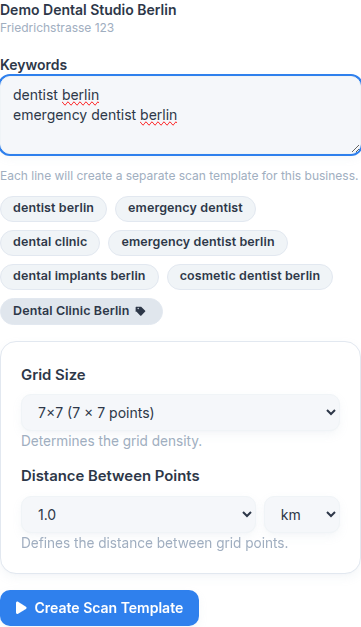
Select the business context and add the keywords you want to turn into templates. Existing keywords, category ideas, and AI suggestions can be inserted directly into the keyword field.
Set the grid density and coverage
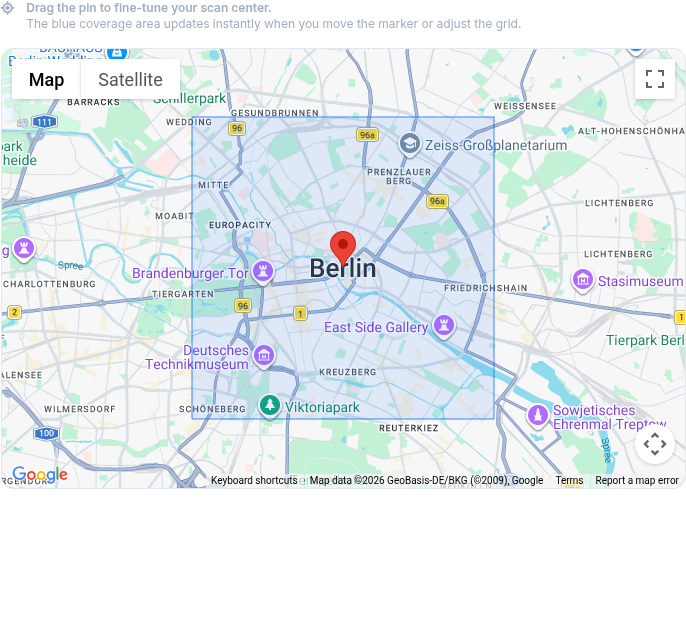
Choose the grid size and point distance based on the market area. Smaller distances give a denser map, while larger distances are better for broad service areas.
- 5x5 or 7x7: Good first template for most local businesses.
- 9x9 and larger: Better when you need wider geographic coverage.
- 0.5-1.0 km point distance: A practical starting range for city-level tracking.
Choose the default processing method
Select Use Credits for server-side processing or Use Browser Extension when that method is available for your account. Creating or editing the template does not start a scan.
If Browser Extension is the default, Local Rank Guru shows whether this account connected to the Extension API within the last 24 hours. Missing activity does not block saving the template; the extension is required only when you run it.
Save and reuse the template
Save the template once the business, keyword, coverage, and default processing method match the area you want to monitor. The template can then be opened from the template list, used for new scans, or attached to recurring schedules.
When you choose Run scan, the shared dialog shows the Business, keyword, grid size, estimated credit cost, and available processing methods. You may override the saved default for that run. An extension scan can be queued without recent activity and remains pending until the signed-in extension requests it. Recurring scans continue to use credit processing.