How to: Create a Quick Scan
Run a one-off GeoGrid scan without creating a reusable template first. Quick Scan is best for spot checks, sales audits, and fast visibility baselines.
Before you start
You need a verified account and a saved business. Credit processing requires enough credits. Browser Extension processing requires the Local Rank Guru extension for Chrome or Firefox to be installed, signed in with the same account, and allowed to process scans. The screenshots below use demo data only.
Open the Quick Scan page
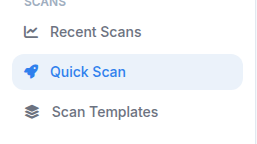
In the member dashboard, open the Scans section in the sidebar and choose Quick Scan. This opens the one-off scan form.
Select a business and enter keywords
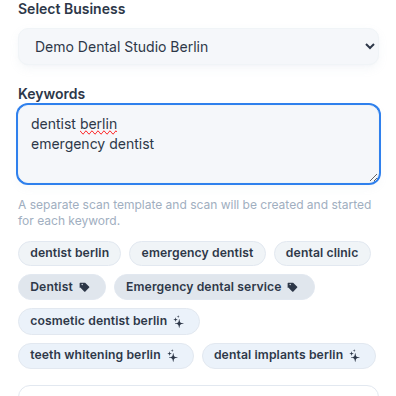
Choose the business profile you want to measure. Then enter one or more search terms separated by commas or line breaks. Existing keywords, business categories, and AI suggestions can speed up setup.
Choose the scan shape
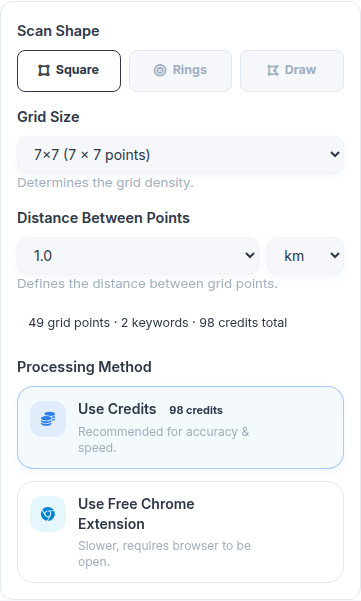
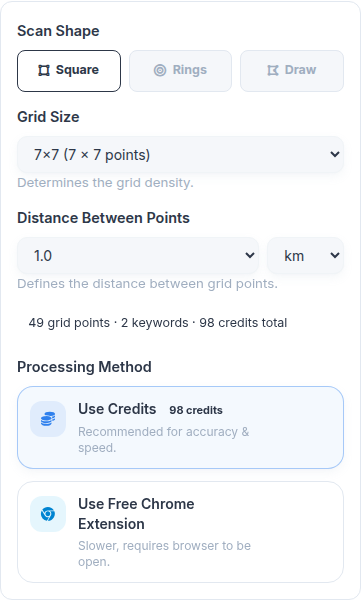
Start with Square for standard grids, use Rings for distance analysis, and choose Draw when the service area is irregular. In Draw mode, move the pin first if the scan center needs a small adjustment, then draw the polygon around the target area.
Square
Best for: recurring audits, city-center checks, and predictable monthly comparisons.
Rings
Best for: understanding how rankings change with distance from the business.
Draw
Best for: service areas, neighborhoods, and non-square coverage areas.
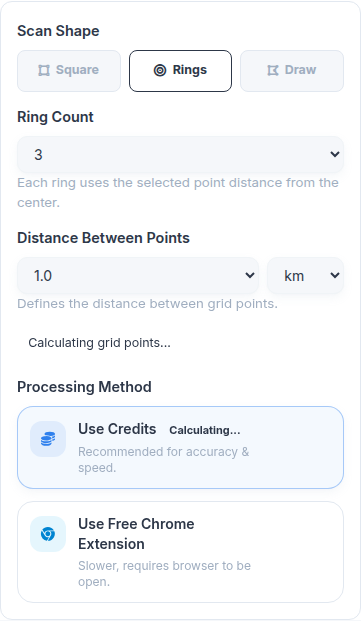
Set density and check credits
Grid size and point distance define how many locations will be scanned. Smaller distances and larger grids provide more detail, but they also increase credit usage.
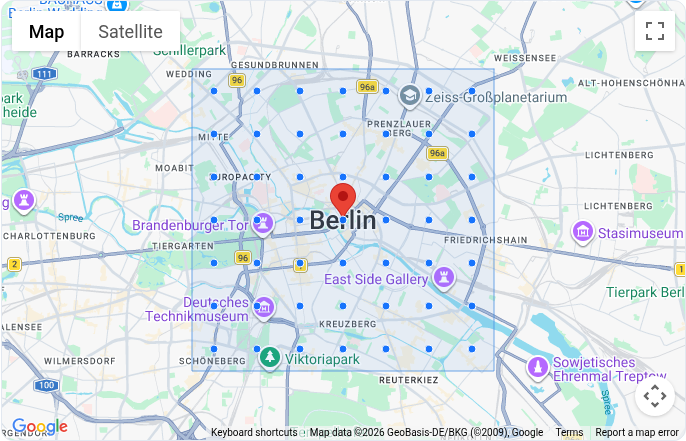
Review the map coverage
The map shows where Local Rank Guru will place the GeoGrid points. Drag the pin if the scan center should be slightly different from the saved business coordinates, including before drawing a custom polygon.
Choose processing and start
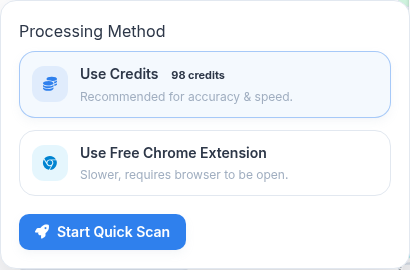
Select Use Credits for server-side processing, or Use Browser Extension to queue a free client-side scan when that method is included with your account.
Local Rank Guru shows whether this account connected to the Extension API within the last 24 hours. This is an activity hint, not a live installation check. You can still click Queue Quick Scan when no recent activity is detected, but the scan remains pending until the extension is installed, signed in, open, and scan processing is enabled.